Sell all day on a tablet or a PC, count the drawer at close, and the day is already in your accounts, your sales tax and your stock.
What you can do
- Sell from a tablet or PC with a browser.
- Keep selling when the internet drops. Receipts wait on the POS and go once it’s back.
- Find products by scanning a barcode, searching, or tapping a picture, with a number pad for quantities, discounts and prices.
- Take cash, card, or both on one sale, with the change worked out.
- Give a discount on a line or on the whole sale, up to a limit you set.
- Let a manager’s PIN approve a bigger discount, a changed price or a refund without a receipt.
- Keep several sales open at once, so one customer can wait while the next one pays.
- Take returns, with the receipt or without it, and print gift receipts with no prices.
- Sell by weight, typed in or read from the price and weight labels your store’s scale prints.
- Put a customer on a sale to charge their own prices, give them an invoice, or let them pay on account.
- Print a QR code on the receipt so a business buyer can get their own invoice later, on their phone.
- Email a receipt instead of printing it.
- Show the customer the sale on a second screen that faces them.
- Record cash in and out of the drawer during the day, without it showing up as over or short.
- Close with a count, see whether the drawer is over or short, and print the Z report.
- See a period’s takings by day, payment method, register and cashier, and which items sold best.
How it works in practice
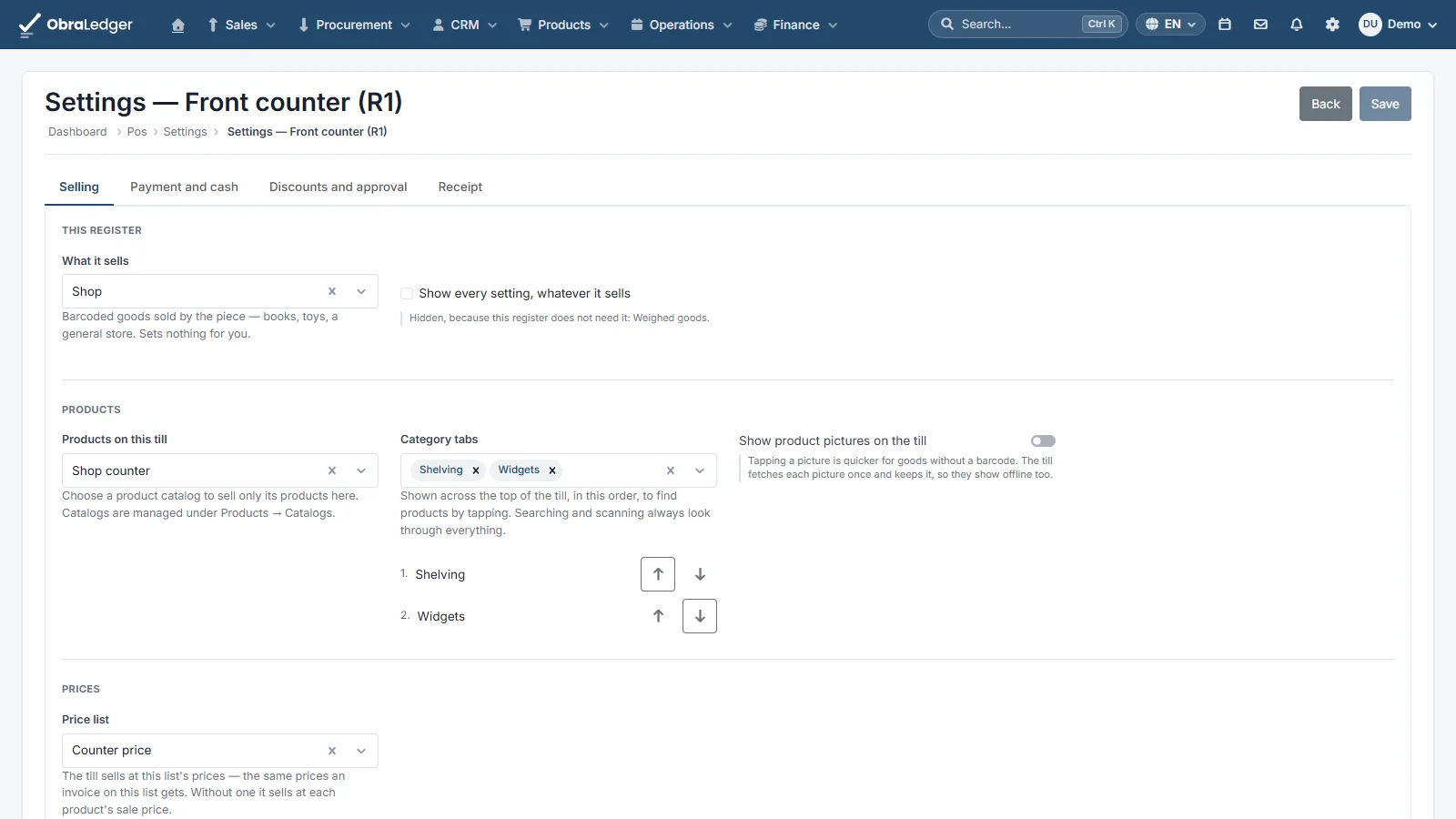
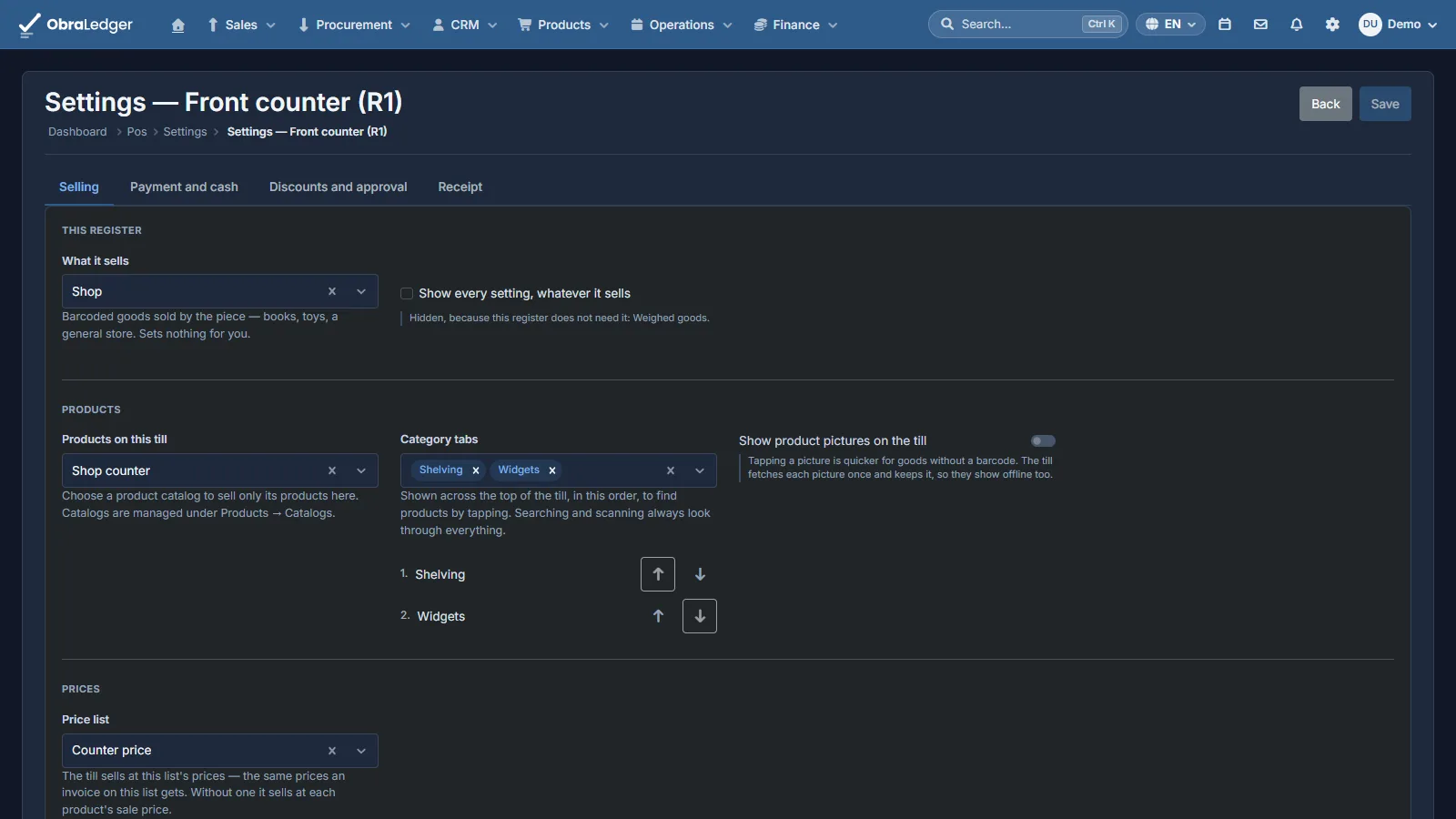
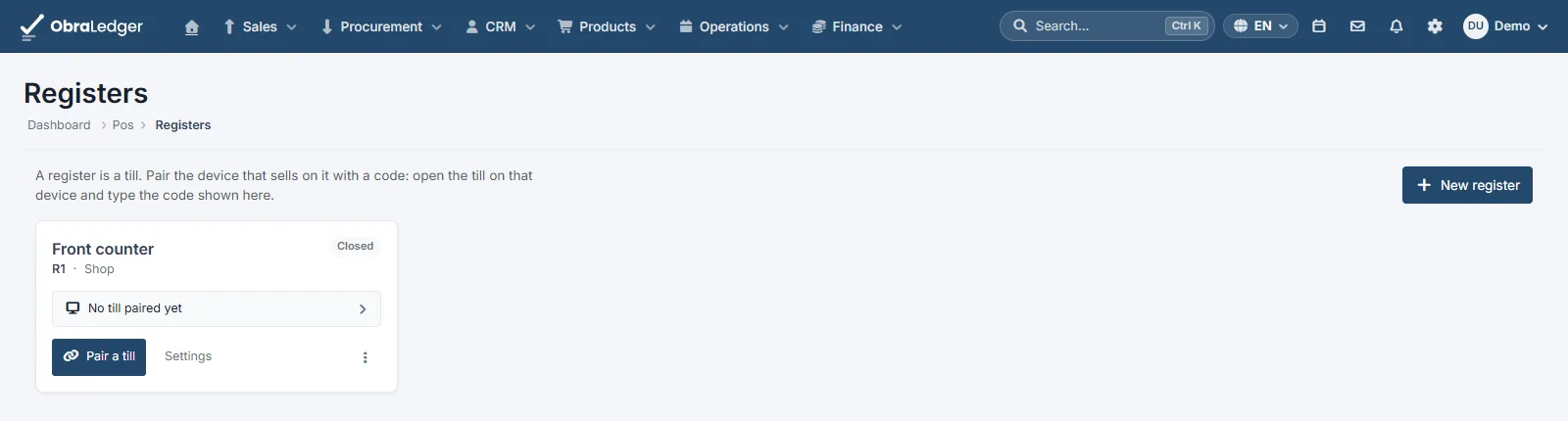
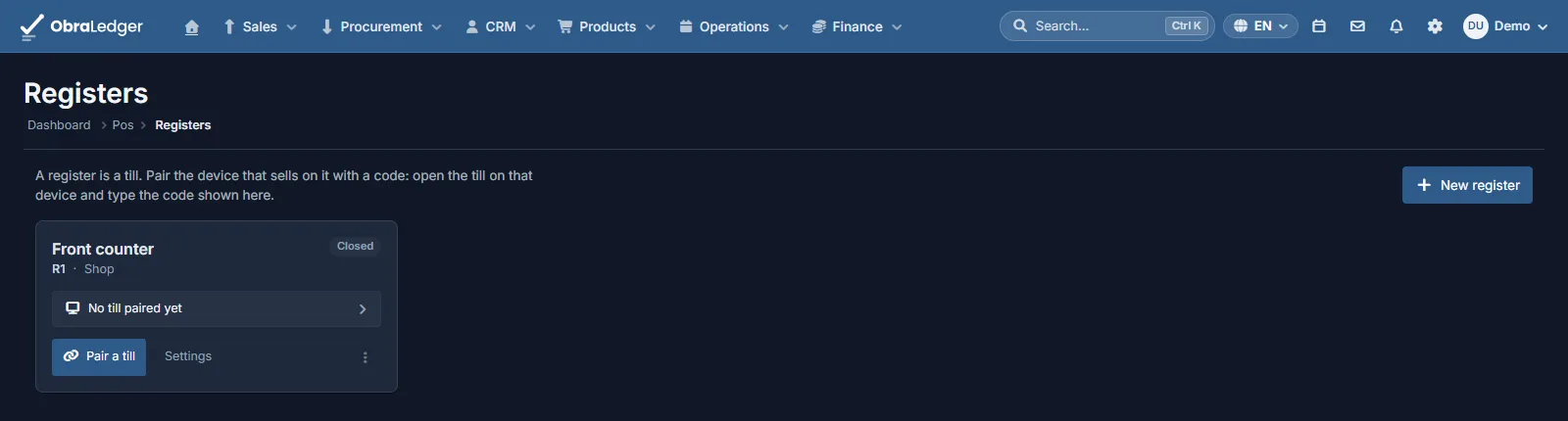
Set up a register (Products → Point of Sale → Registers). Give it a name, a short code that starts every receipt number, and say what it sells: a clothing store, a grocery, a bakery, a salon, and so on. That switches on what that kind of counter usually needs, like product pictures for a bakery or weight labels for a deli, and switches nothing off. Then, in the register’s settings, choose which products it sells, the price list it sells at, and the warehouse its stock comes from. Leave them all empty and it sells every active product at its normal price.
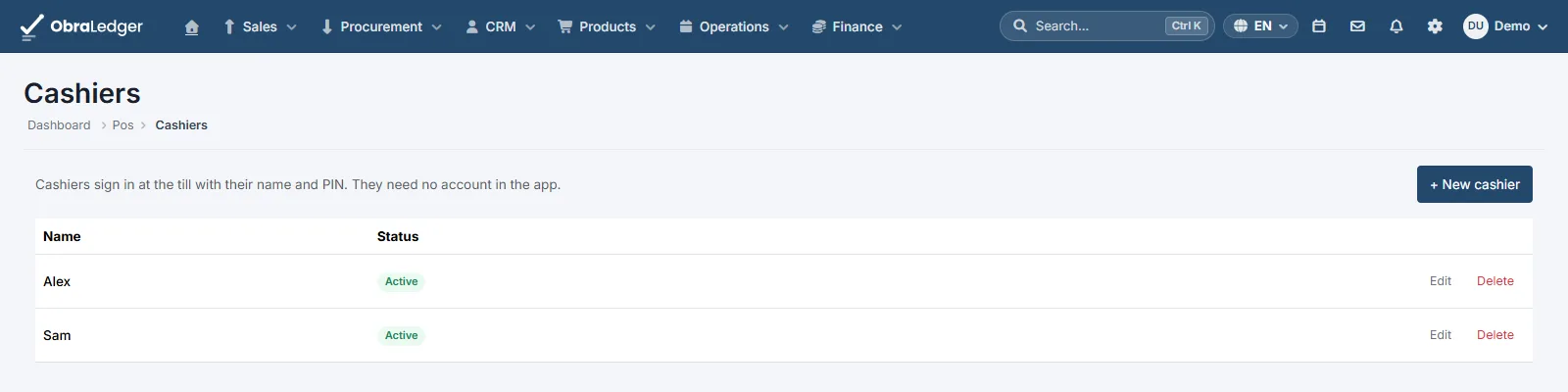
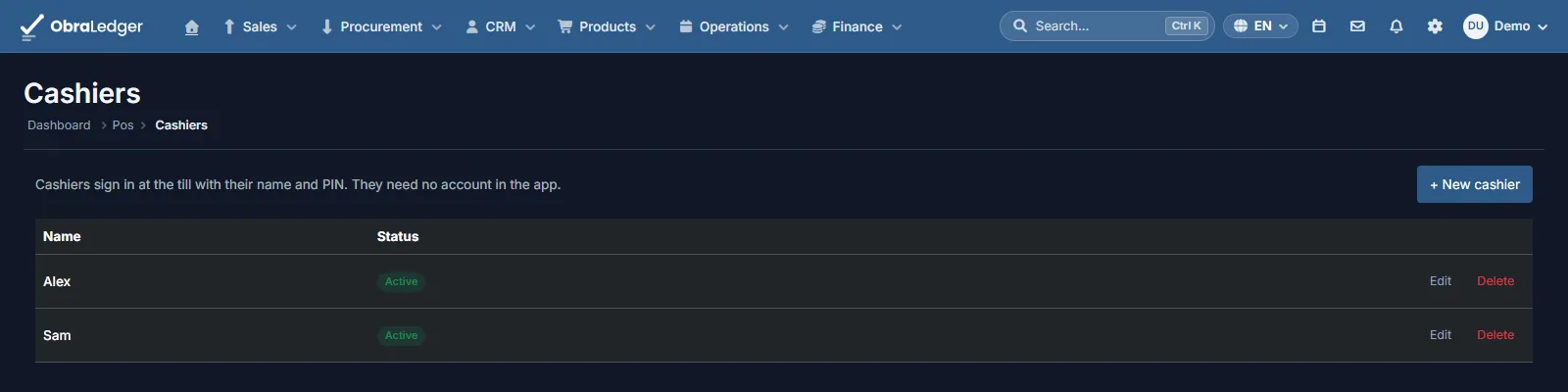
Add your cashiers (Products → Point of Sale → Cashiers). A name and a PIN of four to six digits. Cashiers don’t need a login to the rest of the system, just the PIN, and only at the POS. Mark the ones who can approve, and their PIN is what a manager types when something needs one.
Open the POS, or pair another device. A register is one counter. The POS is the selling screen,
and it runs on a device paired to the register, and a register can have several. From the register’s
card, Open the POS takes you straight to it, with no pairing step, because you’re already signed in.
In the desktop app it opens in a window of its own. For another tablet or PC, choose Pair a device
from the card’s menu to get a one-time code, open till.obraledger.com on that device and type the
code. Install it from the browser and it opens straight to the POS, full screen. If a device is ever
lost or stolen, Revoke on the register’s card stops it at once.
The register’s card shows the day so far. While a shift is open, the card has when it opened, the opening cash, the sales so far (net of returns, with the number of receipts), and the initials of whoever is signed in. A shift left open from an earlier day is marked To close in red, because its sales reach your books only once it’s closed. The card’s button reads Continue selling while a shift is open.
Open, sell, pay. The cashier taps their name, types their PIN, and counts the starting cash (the float) into the drawer to open the register. Scan, search or tap to add goods, change quantities, and take a percentage off a line or off the sale. Pay takes cash, card or both. Card is taken on your own card terminal and recorded here. Where your smallest coin is five cents, the cash part of a sale can be rounded to it while the card part stays exact.
Scan, tap, or type. Scan, beside the search box, sends every scan straight onto the sale, with or without the scanner’s Enter, and reports a code no product has. A product already on the sale shows how many on its tile. Tap a line and the number pad under the total changes it: Qty, % Disc. for a discount on that line only, and Price, which needs a manager’s PIN where the register lets a manager change a price.
Let the customer watch the sale. Customer display, in the POS menu, opens a second window. Drag it onto a screen that faces the customer and make it full screen. It shows each line and the total as you ring them up, then the change once the sale is paid. Open it halfway through a sale and it picks up where the POS is.
Put a name on the sale when it helps. Customer opens on the customers this register sold to last, then the rest by name; search by name, email or tax number, or add a new one at the counter. The pencil beside a customer corrects their name, email, tax number and billing address, while you’re online. A customer with their own price list is charged their prices, and lines already rung up move to them. At Pay, the sale can get its own invoice to that customer, which is the document a business buyer needs, or go on their account to be paid later.
Or let them get the invoice themselves. Switch on the receipt’s QR code and every receipt prints one under “Need an invoice?”. The customer scans it on their phone, types their company details, and gets the invoice as a PDF. There’s no queue at the counter, and it works until you close the register for the day.
Take things back. Return goods asks for the receipt number, from any register and any day, and shows what can still come back. Pick the quantities and refund the way the sale was paid. Without a receipt, ring the goods up in a return tab and a manager approves the refund with their PIN.
Keep going offline. If the connection drops, the POS says so and keeps selling and printing, counting the receipts it hasn’t sent yet. They go as soon as it’s back. Receipts waiting to be sent stay put, even if the disk fills up.
Move cash in or out. Cash in / out, in the POS menu or on the closing screen, records money that goes into or out of the drawer without a sale, so it doesn’t turn up at close as over or short. Cash in is change fetched from the bank or a float top-up, Cash out is takings taken to the bank or the safe, and Paid out is something paid for the business, like milk or a courier. Each says what it’s for, and above the register’s limit a manager approves it with their PIN. The closing screen and the Z report list each one and who did it.
Close the register. The closing screen is a reconciliation: the float, plus cash sales, plus or minus any cash taken in or out during the day, is what the drawer should hold. Type the count, or count it coin by coin, and the screen shows how far over or short you are as you go. Close register prints the Z report: receipts, totals by tax rate and by payment method, and the difference.
And the books are done. Closing a register raises one summary invoice for the day’s walk-in sales, with every receipt line on it and the money taken registered against it, method by method. A sale you invoiced to a customer keeps its own invoice. So the day’s sales and their tax are in your sales tax report, stock has left the warehouse, and cost of sales is posted, exactly where every other invoice puts them. A short drawer is posted as that day’s cost, on its own cash over and short account.
Look across days and registers (Products → Reports → POS sales report). It adds up a period’s takings: net per day, by payment method, by register and by cashier, the ten best-selling items, and every shift with its expected cash, the count and the difference. Returns are counted apart and netted off. Filter it to one register.
Good to know
- You’ll need the Point of Sale extension switched on (Settings → Extensions). Its menu only appears once it is.
- Card payments are recorded, not taken. Your card terminal stays a separate machine. The POS records what it charged so the drawer and the books reconcile.
- Receipts print through the browser’s print dialog, on any printer the computer has, at receipt width.
- Signing in, opening, closing, moving cash in or out, a manager’s approval, finding a customer and looking up a receipt for a return all need a connection. Selling doesn’t. A cashier who was signed in when the connection dropped keeps selling; a different one can’t sign in until it’s back.
- The customer display is a window of the POS’s own browser, on the same computer. It needs no pairing, no login and no connection.
- It’s a store counter, not a restaurant system. There’s no table service and no kitchen printing.
- An exchange is a return and a new sale. A refund goes back by one payment method, not split across two.
- Paying on account has no credit limit, so keep it for customers you know. It’s off until you switch it on for a register.
- Every QR invoice request makes a new customer. A page anyone holding the receipt can open never attaches the sale to an existing customer, so merge the duplicates now and then.
- Certified tills for Germany and France (TSE, NF525) aren’t supported, so a store there needs its own certified system at the counter.