A buyer’s state typed wrong sends IGST out as CGST and SGST. An HSN code nobody checked. A credit note that never reached GSTR-1. The invoice works out GST as you raise it, and the returns read the same lines your books were posted from, so opening GSTR-3B means checking the work, not building it.
What you can do
- Enter your GSTIN, checked when you save it - format, state code and check digit.
- Have every line split into CGST and SGST, or IGST, from your state and your buyer’s.
- Give each product an HSN or SAC code from the full published directory, 8-digit lines included.
- Print GST invoices with both GSTINs, the place of supply, the HSN column and a tax table per component.
- Book reverse charge purchases and SEZ supplies, with exports picked up from the buyer’s country.
- Build GSTR-1 and GSTR-3B for any period and download them for the GST portal, or as a spreadsheet to review.
- Download each invoice’s e-invoice and e-way bill files, transport details included.
- Import a supplier’s e-invoice straight into a purchase.
- Check your GSTR-2B against your books: the credit you haven’t claimed, and the suppliers who haven’t filed.
How it works in practice
Set up once. With your company’s tax regime set to India GST, enter your GSTIN on the company screen (Settings → Company → Company Info); the PAN fills itself in from it. A mistyped GSTIN is refused when you save, because the last character is a check digit and a wrong one doesn’t add up. Below the registration threshold? Leave the GSTIN empty. The same screen takes your TAN, your CIN or LLPIN, and your legal form.
Code your products. The HSN field searches the whole directory by code or by description, goods and services in one list, and it keeps working without a connection. Choose a code and the form tells you what rate the law puts on it. Rice shows two answers - nil for loose, 5% for pre-packaged and labeled - because the code alone can’t say which you sell. The tax code stays your choice.
Then invoice as usual. Your state comes from your GSTIN and the buyer’s from theirs, or from their billing state if they aren’t registered. Same state, CGST and SGST; different states, IGST. The SGST is rounded and CGST takes what’s left, so the two halves always add back up to the tax on the line. The HSN is copied onto the line when you raise it, so changing the product later doesn’t rewrite an invoice you’ve already issued.
Check the rate before it goes out. Each line with an HSN shows the rate under it - GST 5%, or GST Nil or 5%? when it depends on the goods - as the law stood on the document’s date, so an invoice dated before a rate change shows the old rate. When you finalize, any line billed at a rate the list doesn’t give its code is flagged in a warning: a laptop at 5% instead of 18%. Fix the tax code, or choose Finalize anyway if the rate is right for your goods.
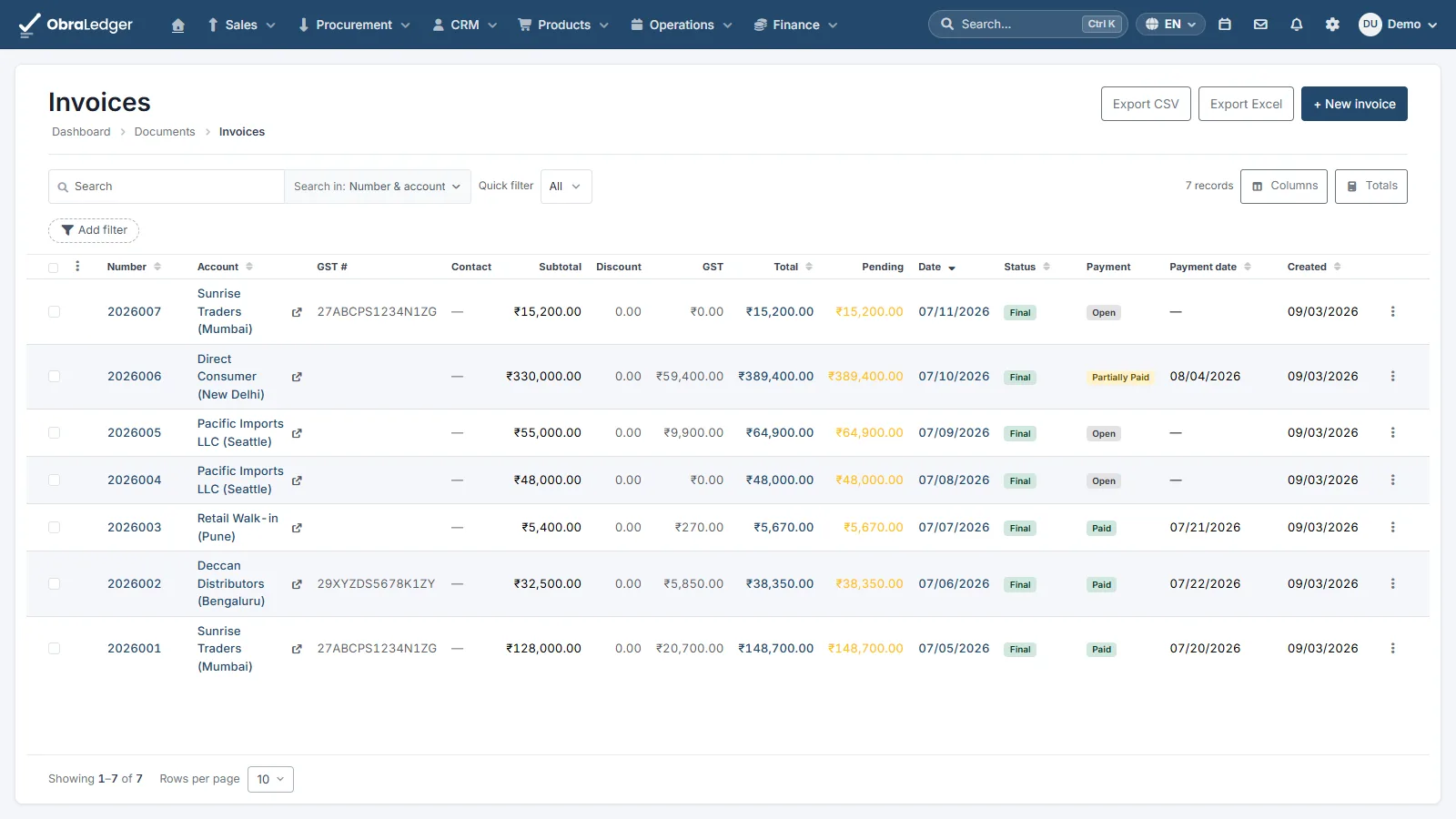
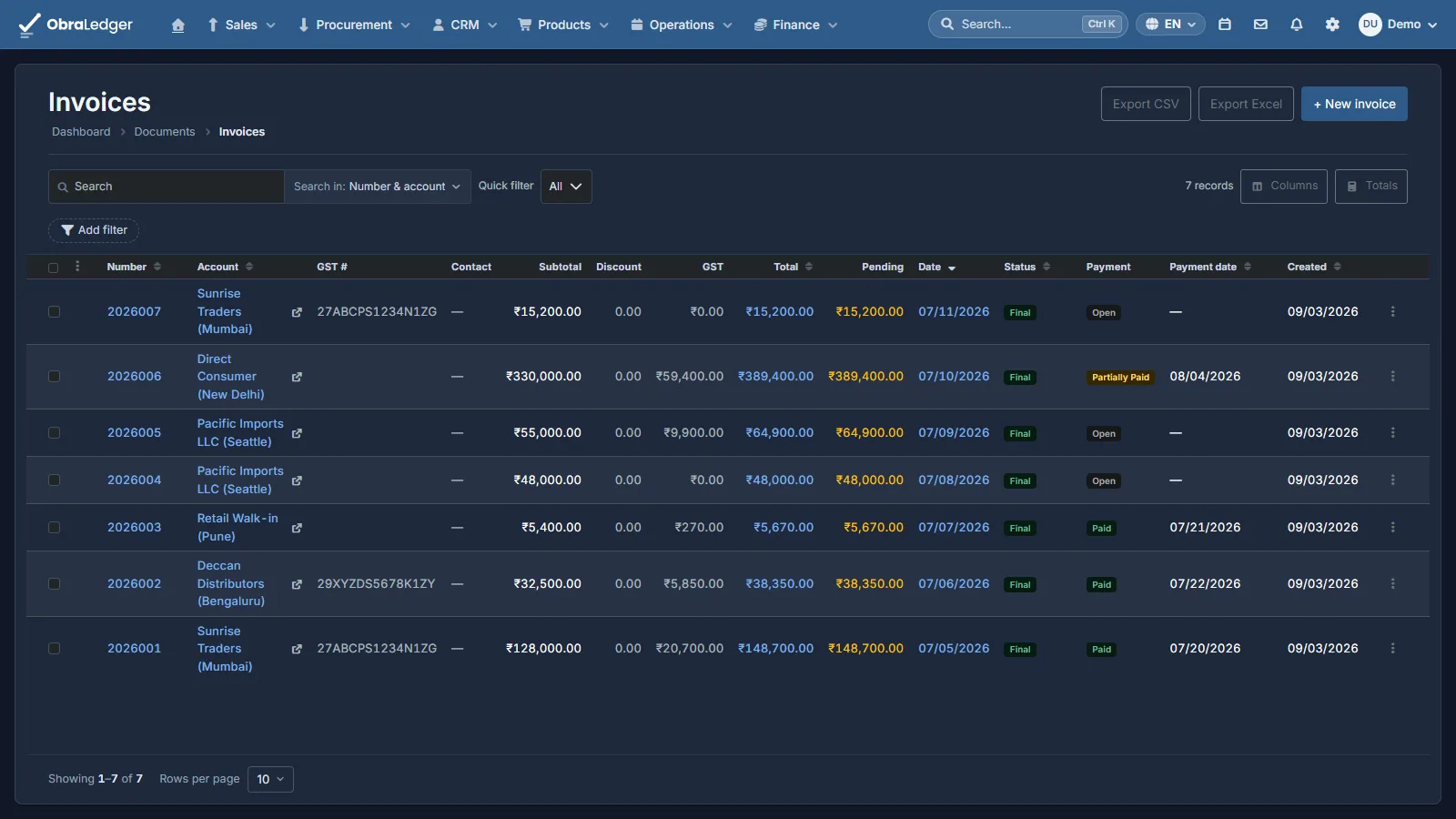
Mark the supplies that aren’t ordinary. A Reverse charge switch on a purchase: you owe the tax, and the credit still goes into your pool. An SEZ supply switch on an invoice or credit note. Exports need nothing - a foreign billing country is enough.
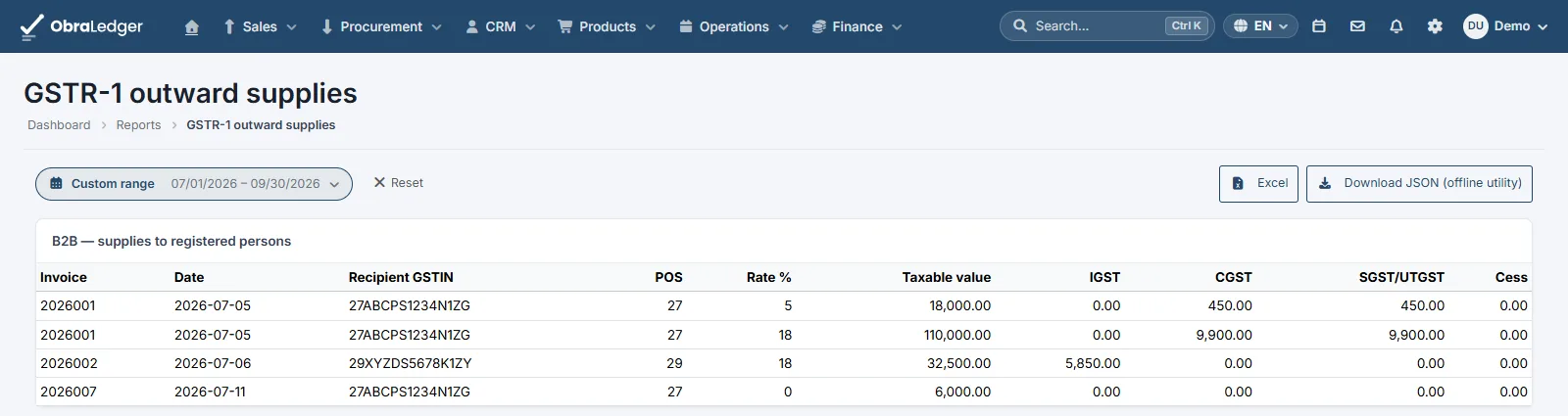
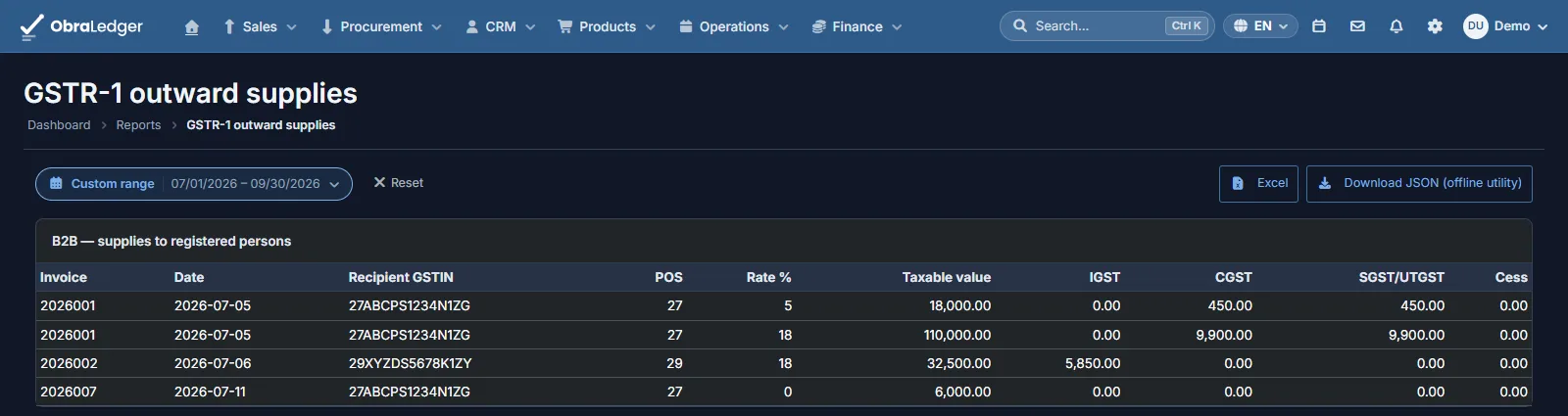
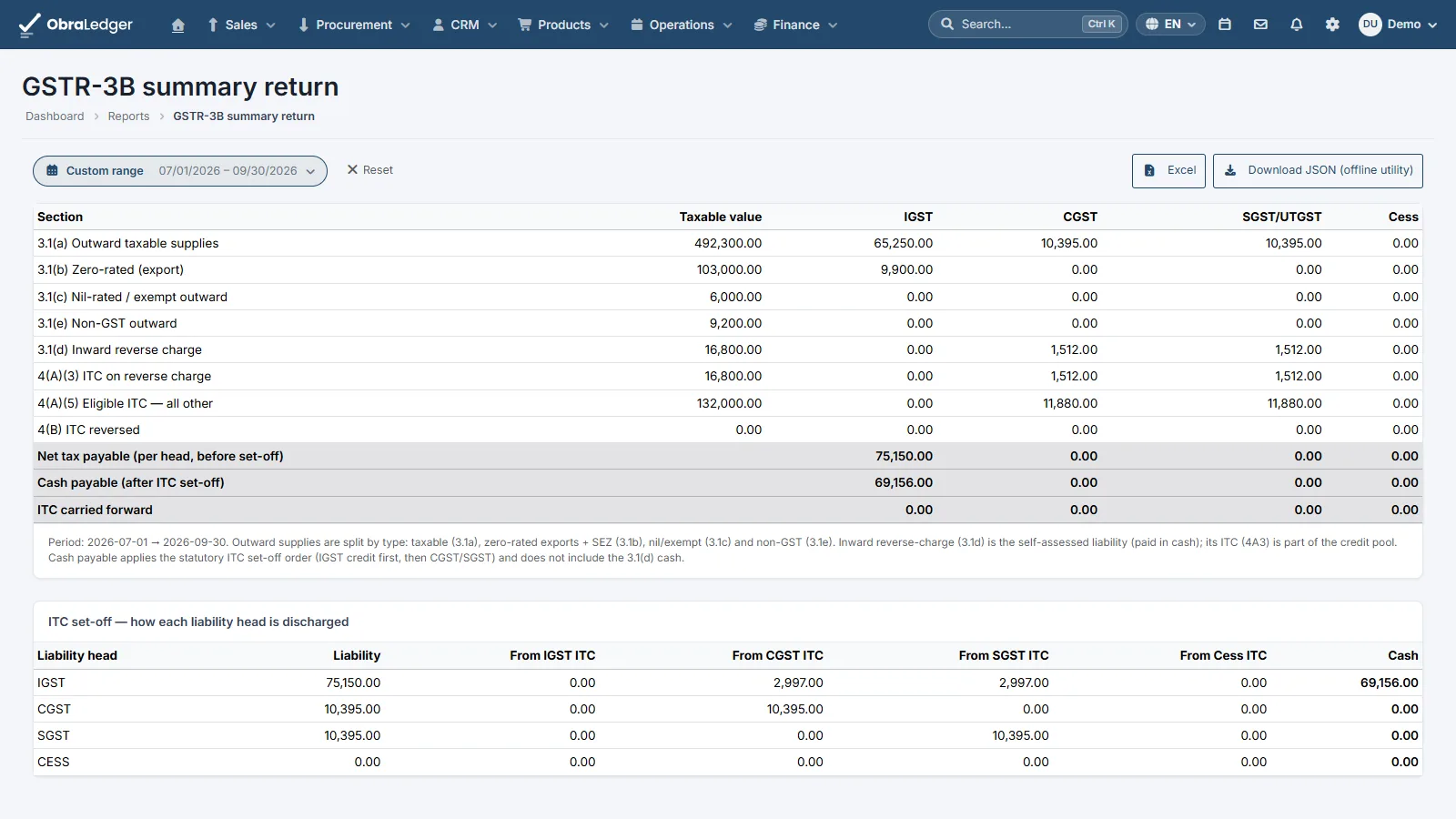
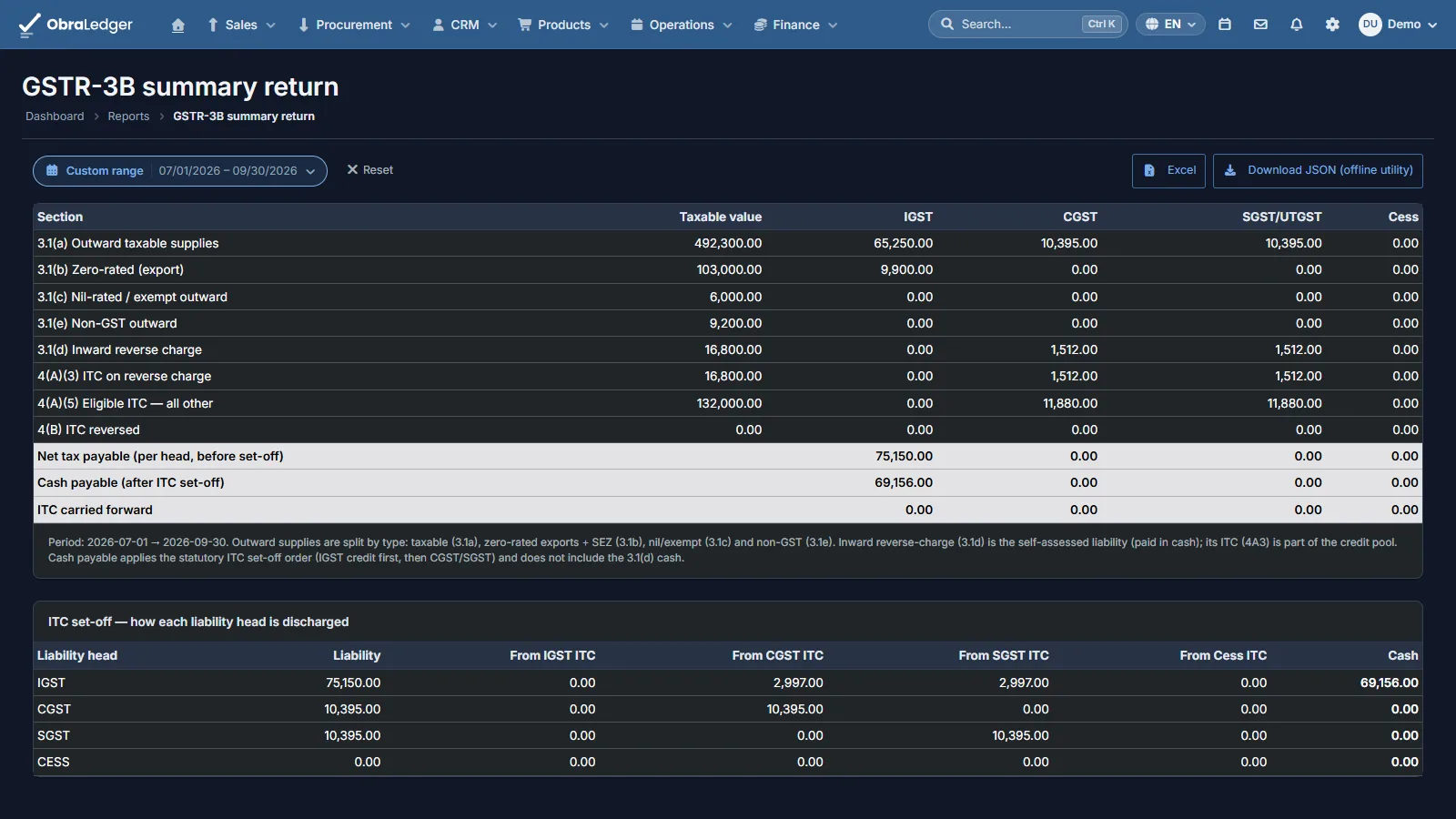
File from the reports (Reports → Finance → GSTR-3B, GSTR-1). GSTR-1 has B2B (SEZ invoices typed as SEZ), B2C large and small, credit notes to registered buyers, exports, and the Table 12 HSN summary. GSTR-3B fills boxes 3.1(a) to (e) and 4(A), then works out the set-off: IGST credit first, as Section 49 requires, then CGST and SGST, arranged so the cash figure is the least the law allows. Download JSON gives you the file the portal’s offline tool takes. Excel gives you a sheet to check first.
Move the goods with an e-way bill. From the invoice, open E-way bill - transport details and fill the transport half: mode, distance, and a vehicle number or a transporter ID. The invoice supplies the rest, and the panel tells you whether this consignment needs a bill at all - required over ₹50,000 between states, likely within one. When the goods change vehicle, add a new trip rather than editing the old one, because a transhipment is a new record and the old trip stays on file. The bill goes to where the goods are delivered, not where the invoice is addressed.
E-invoices the same way. Each finalized invoice has E-invoice JSON in its menu: the file the invoice registration portal takes. A supplier’s e-invoice file, imported, becomes a purchase.
Check your input tax credit against GSTR-2B (Reports → GSTR-2B check). Download the month’s GSTR-2B as JSON from the GST portal and upload it. You get three lists back. Bills your supplier filed that aren’t in your books are credit you can still claim, and each one becomes a draft purchase in a click. Purchases in your books that the supplier hasn’t filed are credit at risk until they do. And the ones in both, with the difference shown wherever the totals disagree by a rupee or more. Bills are matched on the supplier’s GSTIN and their invoice number, never on the amount alone.
Your suppliers’ credit and debit notes are checked the same way, and a note you haven’t entered becomes a draft credit or debit note in a click. A supplier’s amendment matches the bill it corrects, even one you never renumbered. Imports are matched on port code and bill of entry, so enter both on the purchase. Credit from your head office and credit to reverse have no bill to match, so they’re shown as totals. Excel downloads the whole check as one sheet, one row per document, ready for your accountant.
Good to know
- A GSTR-2B draft is totals, not items. GSTR-2B only carries totals, so a purchase made from it has one line per tax rate, labeled for you to replace with the items on the supplier’s bill. A note drafted from it doesn’t say which bill it corrects, because GSTR-2B doesn’t either, so link it yourself. Nothing is kept, so upload the file again to re-check.
- A section the portal adds later is named, not dropped. Anything in the file we don’t read yet is counted under Not checked yet.
- You upload; we don’t file. Returns, e-invoices and e-way bills are files you upload to the portal yourself. Nothing here sends them to the government, so there’s no IRN or e-way bill number until you’ve done that.
- The portal has the last word on interest. GSTR-3B’s interest (Table 5.1) and the Table 6.1 breakup are left to the portal, because its figure is the one you file.
- The composition scheme isn’t supported. If you’re on it, your returns need another tool.
- One HSN code needs you to choose. The portal splits
292143into eleven 8-digit codes, and we won’t guess which one you sell. GSTR-1 warns you above Table 12 until those products are re-coded. Fourteen other codes the portal won’t accept are swapped for its own equivalent automatically. - Advances aren’t netted off the invoice, and the “Advance payment” row other countries get isn’t offered to a GST company, because netting would under-report the sale. On the invoice, use Amount paid: it reduces what’s due and leaves the tax whole. GSTR-1 tables 11A and 11B, where an advance is declared, aren’t prepared here, so an advance that belongs in them goes in on the portal.
- Rates are kept from the notifications, not from a feed. The rate list is read from the government’s own rate notifications, and only as current as the last one checked. It never changes a tax code on its own, and the warning at finalize never stops you.
- A code with no entry of its own borrows from the level above, and says so - “From heading 1006 (Rice)”, or a chapter for codes the law only rates that broadly - so you can see whether the match is about your goods at all.